

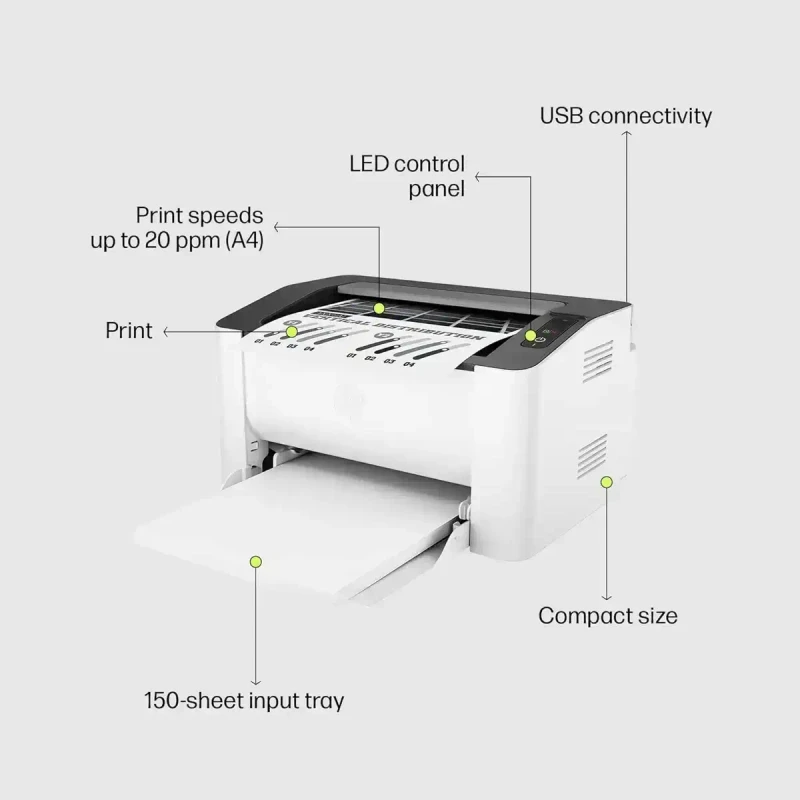
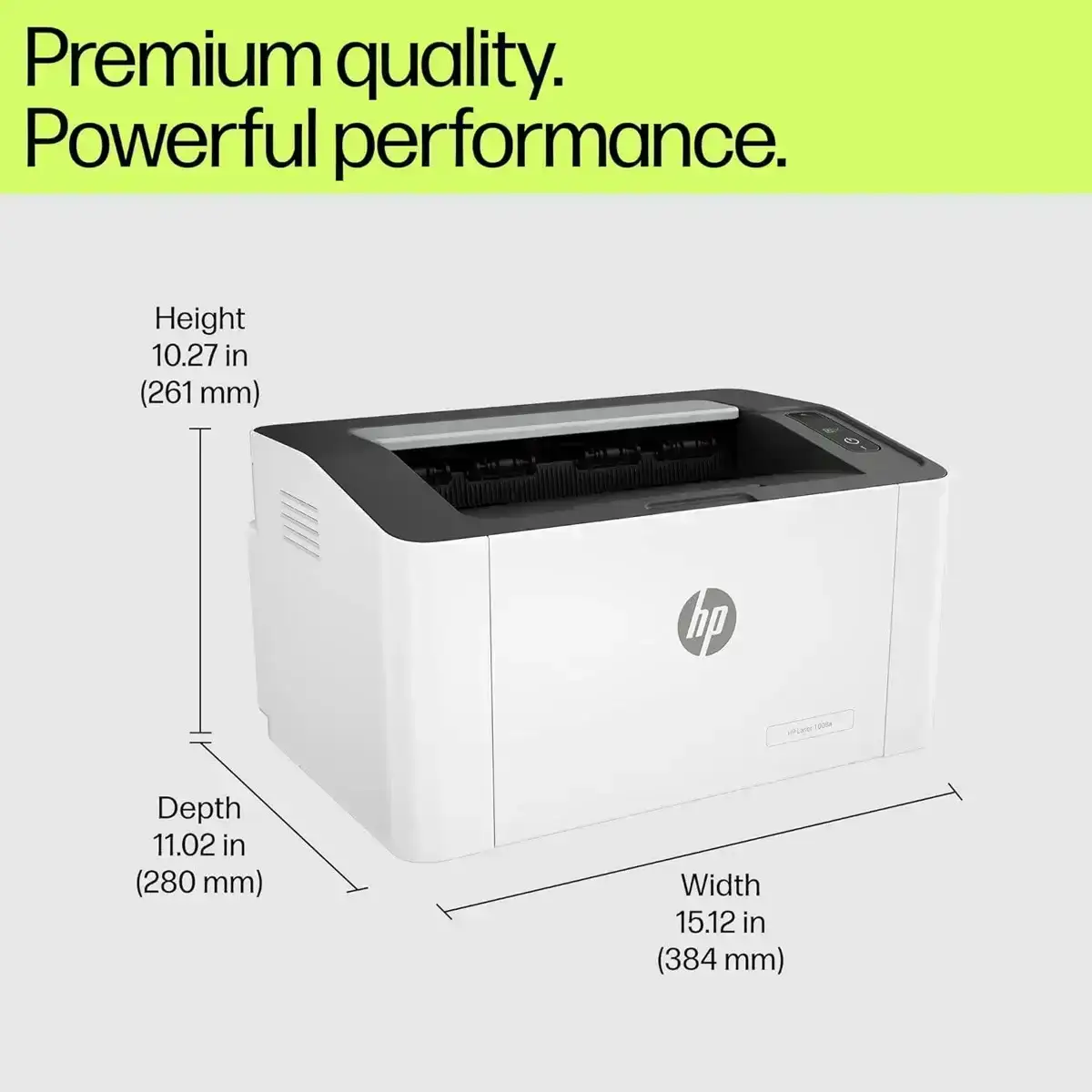
The HP Laser 1008a (SKU: 714Z8A) is one of the most reliable entry-level monochrome laser printers for home offices and small businesses. Offering print speeds of up to 20 ppm and crisp 1200 x 1200 dpi resolution, it delivers sharp black-and-white output in a compact footprint.
However, to unlock its full performance, prevent print queue errors, and access essential tools like HP Printer Manager (USB), installing the official HP Laser 1008a printer driver is critical.
This guide provides direct, step-by-step instructions on how to perform an HP Laser 1008a printer driver download, configure your operating system, and troubleshoot common installation issues.
HP Laser 1008a Driver Overview & File Details
Before proceeding with the download, ensure your host computer meets the system requirements for the V3 Print Driver / Full Feature Driver package.
- Official Product Name: HP Laser 1008a Printer Series
- Software Name: HP Laser 1000 Series V3 Print Driver & Utility
- Supported Operating Systems: Windows 11 (64-bit), Windows 10, Windows 7, Linux (CUPS)
- Interface Port: Hi-Speed USB 2.0 Connection
- Core Functions: Basic Printing, Manual Duplex Driver Support, HP Printer Manager
- Compatible Toner Cartridge: HP 110A / HP 166A Black Toner Cartridge
Step-by-Step Installation Guide for Windows 11 & Windows 10
To ensure a smooth setup without "Driver Unavailable" or USB connection errors, follow this structured installation workflow.
1.Disconnect the USB Cable:Crucial Pre-Installation Step.
Do not connect the printer to your PC yet. Keep the USB 2.0 connection cable unplugged until the driver installer explicitly prompts you. Unplugging prevents Windows from assigning a generic, non-functional driver to the device.
2.Download the Official Software Package:File Retrieval.
Obtain the HP Laser 1008a printer driver download file directly from HP Printer Support / Official Drivers. Save the .exe installer package to your local downloads folder.
3.Execute the Installer:3 - 5 Minutes.
Double-click the downloaded executable file to launch the installation wizard. Accept the HP Software License Agreement and proceed through the initial setup prompt.
4.Connect the USB Cable when Prompted:Hardware Detection.
When the installer asks for connection type, select USB Connection. Plug your HP Laser 1008a into a high-speed USB port on your PC and power on the printer. The installer will auto-detect the hardware and register the printer port.
5.Complete Setup & Print Test Page:Final Verification.
Once the HP Printer Manager (USB) software finishes configuring the print queue, print a test page to confirm text rendering and driver communication.
Critical Clarification: HP Laser 1008a vs. HP LaserJet P1008
Note on Model Differences: Many third-party review sites confuse the HP Laser 1008a with the older HP LaserJet P1008.Always verify that you are installing the driver dedicated to the HP Laser 1000 series (1008a) rather than legacy P-series software.
- The HP Laser 1008a is a modern monochrome laser printer featuring a 400 MHz processor, 64 MB RAM, and 20 ppm speeds.
- The HP LaserJet P1008 is a legacy printer model from an older product cycle.
Operating System Compatibility & Wireless Capabilities
Windows and Mac Compatibility
- Windows 11 / 10 / 7: Full driver features are supported via the official executable installer.
- macOS: The 1008a is primarily designed for Windows environment USB connections. Mac users can utilize Apple AirPrint or generic CUPS drivers if connected via a supported print server, though direct driver features are limited compared to Windows.
Wireless Printing Notice
The HP Laser 1008a is a USB-only device. If you require Wi-Fi, mobile app setup, or HP Smart App network connectivity, refer to the wireless variant, HP Laser 1008w / 108w.
Troubleshooting HP Laser 1008a Driver Issues
How to Fix "Printer Offline" or Driver Unavailable
If your computer indicates the printer is offline despite being connected via USB:
- Open Device Manager on Windows.
- Expand Print Queues, right-click HP Laser 1008a, and select Uninstall Device.
- Unplug the USB cable, restart your PC, and re-run the driver setup file.
How to Enable Manual Duplex Driver Support Settings
The HP 1008a supports manual duplex (two-sided) printing. To enable it:
- Go to Control Panel > Devices and Printers.
- Right-click HP Laser 1008a and choose Printing Preferences.
- Under the Layout tab, enable Print on Both Sides (Manually).
Frequently Asked Questions (FAQ)
1.Where can I get the official HP Laser 1008a printer driver download?
Always download drivers directly from the official HP Support portal (support.hp.com). Third-party utility tools may bundle unnecessary adware or outdated software.
2.Does the HP Laser 1008a driver include toner monitoring tools?
Yes. Installing the full driver package includes HP Printer Manager, which allows you to monitor the remaining level of your HP 110A Black Toner (W1110A / W1112A) or HP 166A Toner (W1660A).
3.Can I run this printer on Windows 11 64-bit?
Yes. The V3 Full Feature Driver provides native 64-bit compatibility for both Windows 10 and Windows 11.


No comments yet. Be the first to start the conversation!